Quickstart Guide
In this guide, we will build a basic website featuring login with Gamma using OAuth 2.0 and the OpenID API, similar to the Gamma Demo created by Cal.
If you have not done so already, follow the guide on Creating a User Client and use
as the Redirect URI.
The Authorization Code Flow
"Logging in" to a website with Gamma is actually a form of authorization. The is authorizing your client to get information about them from the Gamma API. This is done using the OAuth 2.0 Authorization Code Flow, for which we will have to familiarize ourselves with a few OAuth 2.0 concepts:
// TODO: Improve descriptions
| Term | Explanation |
|---|---|
| Authorization URL | URL on Gamma which takes the user to the login screen. Includes the Client ID, Redirect URI and Scopes. |
| Client Id | Public identifier for your client. |
| Client Secret | Secret key which your client uses to authenticate itself. Anyone with this can impersonate your client. |
| Redirect URI | URI on your server where the user is redirected after approving or denying your client. |
| Scopes | What information the client will be able to access about the user. Read more on the Authorization page. |
| Authorization Code | Acquired after the user approves the client on the login screen. Is exchanged for an Access Token by your client. |
| Access Token | Used to authorize API requests to Gamma. |
Got all that? Great! The authorization flow we will implement looks like this:
- User presses the login button on the website. This causes the browser to ask
your backend client to authorize by redirecting to
/authorize. - Your client tells the browser to redirect to the Authorization URL containing your client details.
- The user is now presented with the Gamma login and consent screens where the user can see what information your client will be able to access and may approve or deny it.
- After approving or denying your client Gamma will redirect the browser to
your Redirect URI. Assuming the client is approved an Authorization
Code will be included in the
codequery parameter. Your client then sends the code to the Gamma API together with the client credentials. - Gamma responds with an Access Token. Hooray!
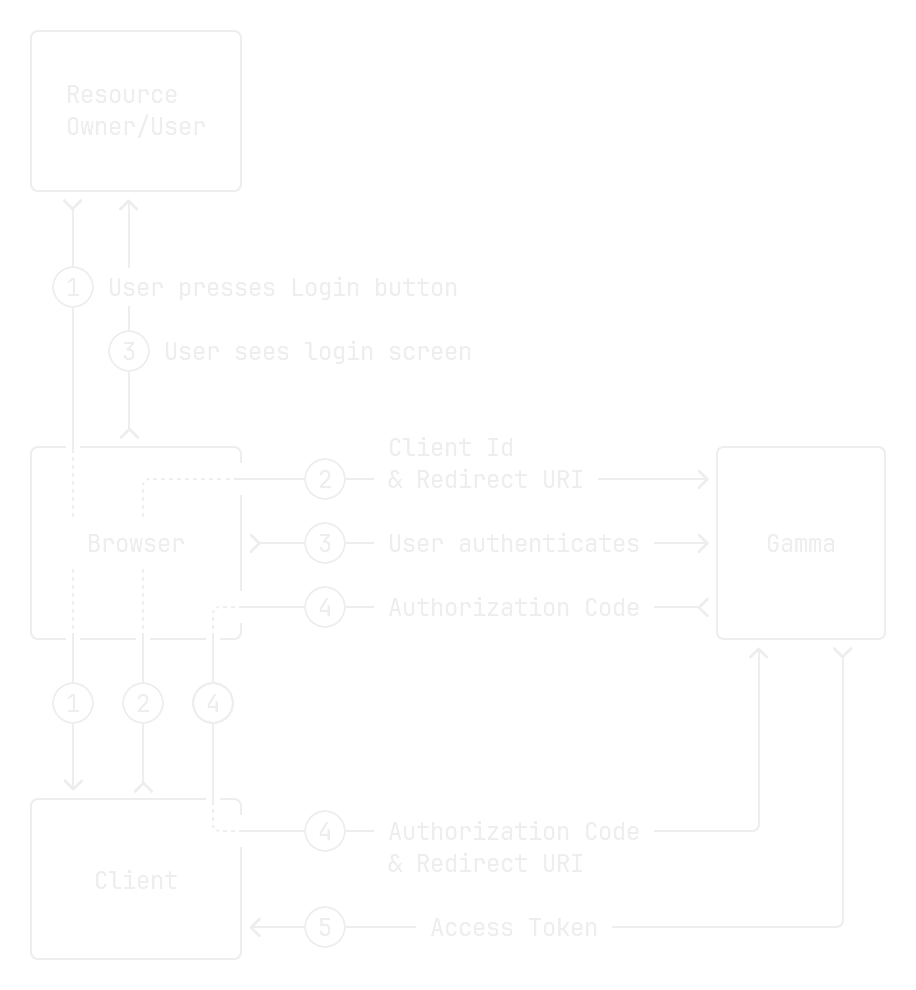

Diagram of the Authorization Code Flow in Gamma.
Read more about authorizing with the Gamma API on the dedicated Authorization page.
Follow Along
If you want to follow along you can clone the Git repository at https://github.com/olillin/gamma-quickstart:
We will be building the website with
TypeScript and Node.js®. You can get it from
the official downloads page or if you are
using Nix, just run nix develop.
Then run this command in your terminal to install all dependencies:
To start a development server run this command in your terminal:
Now go to http://localhost:8000. You should see a mostly empty page with a "Hello Gamma Quickstart!" in the middle, this is the page we will be adding login to.
Tip
Keep the terminal open and the website will reload automatically when you update the source code.
Getting Started
// TODO: Explain/mention backend endpoints
Opening the src/app.ts file we can see the route for our website homepage.
This is a function which will handle requests to the path /, the homepage of
our website.
The req parameter contains request parameters like our Authorization Code.
The res parameter has many functions which tells
Adding Login
To initate the login we will create a new route at /login which will create
the Authorization URL and redirect the user. Edit the home in home.hbs
page and add the button:
To communicate with Gamma we will use the gammait library, a Gamma API Client for Node.js®.
Create an Authorization Code Flow client:
import { AuthorizationCode } from 'gammait'

const clientId = process.env.CLIENT_ID
const clientSecret = process.env.CLIENT_SECRET
const redirectUri = process.env.REDIRECT_URI

const client = new AuthorizationCode({
    clientId: clientId,
    clientSecret: clientSecret,
    redirectUri: redirectUri,
    scope: ["openid", "profile"]
})

app.get('/login', (req, res) => {
    const authorizationUrl = client.authorizeUrl()

    res.redirect(authorizationUrl)
})
import * as client from 'openid-client'

const server = "https://auth.chalmers.it"
const clientId = process.env.CLIENT_ID!
const clientSecret = process.env.CLIENT_SECRET!
const redirectUri = process.env.REDIRECT_URI!

const config: client.Configuration = await client.discovery({
    server,
    clientId,
    clientSecret,
})

app.get('/login', (req, res) => {
    const authorizationUrl = client.buildAuthorizationUrl(config, {
        redirectUri: redirectUri,
        scope: "openid profile",
    })

    res.redirect(authorizationUrl)
})
Handling Failed Login
It is important to consider what will happen if the user does not approve your
client when logging in. In this case the user will still be redirected to the
Redirect URI but instead of code the URL will have these parameters:
| Name | Value |
|---|---|
| error | access_denied |
| error_description | OAuth2.0 Parameter: client_id |
| error_uri | https://datatracker.ietf.org/doc/html/rfc6749#section-4.1.2.1 |
We can check for error=access_denied to detect when a user denied logging in.
Alternatively, we can check for the absence of the code parameter.
// TODO Implementation
Using other APIs
Now that the user has logged in to the client we can use their id in requests to other Gamma APIs. Let's get the groups the user is part of using the Client API:
// ...

import { ClientApi } from 'gammait'

const apiKeyId = process.env.API_KEY_ID
const apiKey = process.env.API_KEY
// TODO: Remove?
const authorization = `pre-shared ${apiKeyId}:${apiKey}`

const clientApi = new ClientApi({
    // TODO: Use real syntax or update gammait
    apiKeyId: apiKeyId,
    apiKey: apiKey
})

app.get('/profile(1)', async (req, res) => {
    // ...
    const profile: UserInfo = await authorizedClient.userInfo()

    // Get the user's groups
    const userId: string = profile.sub
    const groups: GroupWithPost[] = await clientApi.getGroupsFor(userId)

    // Show the group names and post
    const prettyGroups: string[] = groups.map(group =>
        `${group.prettyName} - ${group.post.enName}`
    )

    // ...
})
- Will be visible at http://localhost:8000/profile.
// TODO
Last modified on: 2026-06-18 19:24:35